> ## Documentation Index
> Fetch the complete documentation index at: https://docs-staging-feat-sdk-reference-docs.mintlify.site/llms.txt
> Use this file to discover all available pages before exploring further.
> HTTPS ベースのコールバックを使用して、アプリケーションのなりすましに対するセキュリティを強化し、リスクを軽減する方法を学びます。
# 検証不能なコールバック URI のエンドユーザー確認への移行
Auth0 は、[認可コードフロー](/docs/ja-jp/get-started/authentication-and-authorization-flow/authorization-code-flow-with-pkce) を使用するすべてのネイティブアプリケーションに対して、[Android App Links](https://developer.android.com/training/app-links) と [Apple Universal Links](https://developer.apple.com/documentation/xcode/allowing-apps-and-websites-to-link-to-your-content) を使用した HTTPS ベースのコールバックへの移行を推奨しています。これにより、セキュリティが強化され、アプリケーションのなりすましやフィッシング攻撃のリスクを軽減できます。
これによって攻撃をどのように防げるかを理解するには、[Measures Against Application Impersonation](/docs/ja-jp/secure/security-guidance/measures-against-app-impersonation#prompt-customization) を確認してください。
2025 年 10 月 15 日より前に作成されたテナントでは、2026 年 4 月 28 日までは従来の動作がデフォルトのまま維持されます。10 月の期限日以降に新しく作成されたテナントでは、各環境のデプロイ スケジュールによる一部の例外を除き、新しいログイン確認プロンプトがデフォルトで表示される場合があります。
明示的にオプトアウトしたテナントでは、このプロンプトは無期限に表示されません。これは、2026 年 4 月 28 日にサービスで確認プロンプトがデフォルトの動作となり、「Unconfirmed Login with Non-Verifiable Callback URI Redirects」の移行トグルが削除された後も変わりません。
どのような影響がありますか?
すでにカスタム URI スキームまたはループバック URI コールバックを指定している、あるいは今後指定する予定のあるクライアントアプリケーションでは、エンドユーザーが新しいログイン確認プロンプトで操作を行い、ログインを明示的に確認する必要が生じる場合があります。エンドユーザーは、この変更によってユーザーエクスペリエンスが低下したと感じる可能性があります。
さらに、アプリケーションが検証不能なコールバック URI を使用し、新しいログイン確認プロンプトを使用するよう設定されている場合、`prompt=none` を含む認証リクエストは拒否されます。
移行タスク
**Auth0 は、認可コードフローを使用するすべてのネイティブアプリケーションについて、可能な限り Android App Links と Apple Universal Links を使用した HTTPS ベースのコールバックへの移行を強く推奨しています**。
さらに、2026 年 4 月 28 日以降にデフォルトの動作が変更されるテナントでは、システムのデフォルト変更に先立ち、カスタム URI スキームまたはループバック URI コールバックを使用する認証リクエストに必要な動作を明示的に選択する必要があります。
アプリケーションで 検証不能なコールバック URI が使用されているか確認する
Unconfirmed Login with 検証不能なコールバック URI Redirects の migration toggle が利用可能で、有効になっているテナントでは、カスタム URI スキームまたはループバック URI を指定する認証リクエストは、アプリケーションまたはテナント レベルで次のオプションを明示的に設定していない限り、**非推奨化通知を示すテナントログを生成します**。
`skip_non_verifiable_callback_uri_confirmation_prompt`
これらのテナントログには、リクエストを実行したアプリケーションのクライアント ID が含まれます。これらのテナントログは、次のクエリを使用して Auth0 Dashboard で監視できます。
```bash theme={null}
type:depnotetype:depnote AND description:Unconfirmed\ Login\ with\ Non-Verifiable\ Callback\ URI\ Redirects*
```
新しいログイン確認プロンプトを事前に有効化する
新しいログイン確認プロンプトを事前に有効化し、カスタム URI スキームまたはループバック URI を使用する認証フローのセキュリティを強化するには、Auth0 Dashboard で次の手順を実行します。
1. [**Auth0 Dashboard > Tenant Settings > Advanced**](https://manage.auth0.com/#/tenant/advanced) に移動します。
2. **Migrations** セクションで、**Unconfirmed Login with Non-Verifiable Callback URI Redirects** トグルをオフにします。
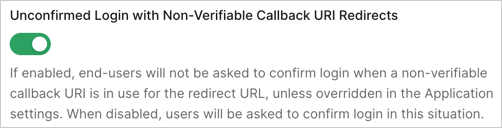
新しいログイン確認プロンプトを使用しない
セキュリティ上の考慮事項を評価したうえで、新しいログイン確認プロンプトを使用しないと判断した場合は、特定のアプリケーションまたはテナント全体で、この新しい動作を無効にするよう設定できます。設定は Auth0 Dashboard から行えます。
アプリケーション レベルの設定は、テナント レベルの設定より優先されます。意図しない動作変更を避けるため、テナント レベルの設定を変更する前に、アプリケーション固有の設定を行ってください。たとえば、特定のアプリケーションでは **検証不能なコールバック URI End-User Confirmation** をスキップし、他のアプリケーションではデフォルトで表示する、といった設定やその逆の設定が可能です。
特定のアプリケーションで無効にするには:
1. [Auth0 Dashboard > Applications > Settings > Advanced Settings > OAuth](https://manage.auth0.com/applications/settings) に移動します。
2. **検証不能なコールバック URI End-User Confirmation** トグルを見つけて無効にし、**Save** を選択します。この設定を永続的に管理できるようにするには、**Override the tenant setting** オプションの選択が必要になる場合があります。
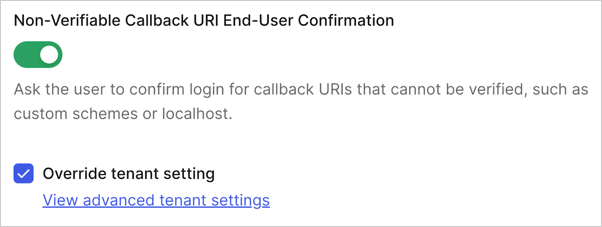 テナント全体で無効にするには:
1. [Auth0 Dashboard > Tenant Settings > Advanced](https://manage.auth0.com/tenant/advanced) に移動します。
2. **Login and Logout** セクション内の **検証不能なコールバック URI End-User Confirmation** トグルを見つけて無効にし、**Save** を選択します。この設定を永続的に管理できるようにするには、**Turn on** の選択が必要になる場合があります。
テナント全体で無効にするには:
1. [Auth0 Dashboard > Tenant Settings > Advanced](https://manage.auth0.com/tenant/advanced) に移動します。
2. **Login and Logout** セクション内の **検証不能なコールバック URI End-User Confirmation** トグルを見つけて無効にし、**Save** を選択します。この設定を永続的に管理できるようにするには、**Turn on** の選択が必要になる場合があります。
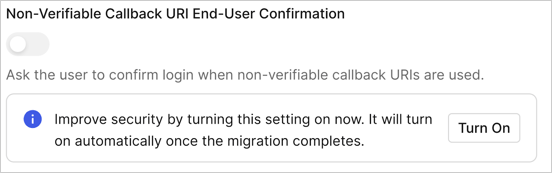 必要なテナントの動作は、Auth0 Management API を使用して設定することもできます。具体的には、次の 2 つのレベルで設定できます。
* **テナント レベルの設定**: [テナント設定を更新](https://auth0.com/docs/api/management/v2#!/Tenants/patch_settings) エンドポイントで `skip_non_verifiable_callback_uri_confirmation_prompt` プロパティを設定することで、確認プロンプトの動作を管理できます。
* **アプリケーション レベルの設定**: 特定のアプリケーションについてテナント レベルの設定を上書きするには、[Update Client](https://auth0.com/docs/api/management/v2#!/Clients/patch_clients_by_id) エンドポイントで同じ `skip_non_verifiable_callback_uri_confirmation_prompt` プロパティを設定します。
アプリケーションの設定に関する追加情報とガイダンスについては、[Measures Against Application Impersonation](/docs/ja-jp/secure/security-guidance/measures-against-app-impersonation) を参照してください。
必要なテナントの動作は、Auth0 Management API を使用して設定することもできます。具体的には、次の 2 つのレベルで設定できます。
* **テナント レベルの設定**: [テナント設定を更新](https://auth0.com/docs/api/management/v2#!/Tenants/patch_settings) エンドポイントで `skip_non_verifiable_callback_uri_confirmation_prompt` プロパティを設定することで、確認プロンプトの動作を管理できます。
* **アプリケーション レベルの設定**: 特定のアプリケーションについてテナント レベルの設定を上書きするには、[Update Client](https://auth0.com/docs/api/management/v2#!/Clients/patch_clients_by_id) エンドポイントで同じ `skip_non_verifiable_callback_uri_confirmation_prompt` プロパティを設定します。
アプリケーションの設定に関する追加情報とガイダンスについては、[Measures Against Application Impersonation](/docs/ja-jp/secure/security-guidance/measures-against-app-impersonation) を参照してください。