> ## Documentation Index
> Fetch the complete documentation index at: https://docs-staging-feat-sdk-reference-docs.mintlify.site/llms.txt
> Use this file to discover all available pages before exploring further.

> Learn how to configure an update policy form using Forms for Actions for users to review and accept new terms of service or consent updates.

# Use Cases: Configure an update policy form using Forms

<Card title="Before you start">
  1. Create a [Machine-to-Machine Application](/docs/get-started/auth0-overview/create-applications/machine-to-machine-apps) with the following scopes enabled:

  * `read:users`
  * `update:users`
  * `create:users`
  * `read:users_app_metadata`
  * `update:users_app_metadata`
  * `create:users_app_metadata`

  2. Add a [Vault connection](/docs/customize/forms/vault) using the M2M application credentials.
</Card>

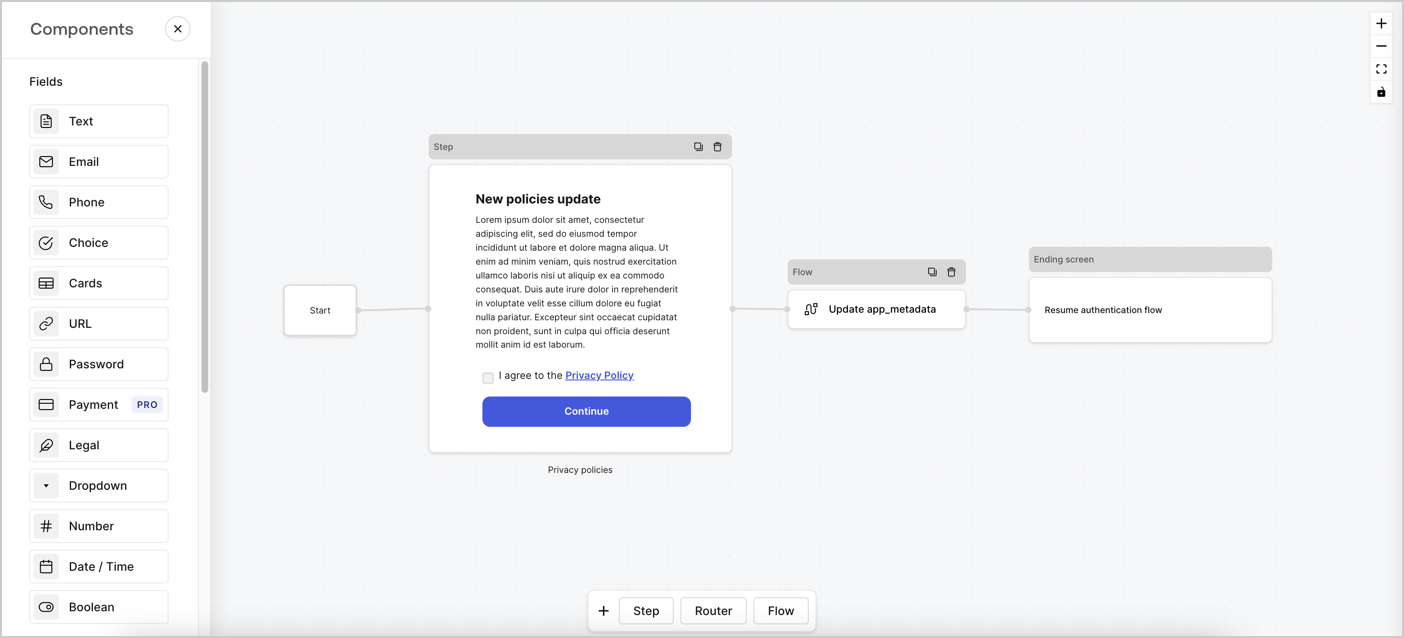
Forms for Actions allows you to create custom privacy policies flows and store the consent under the `app_metadata` object.
<Frame>
  <img src="https://mintcdn.com/docs-staging-feat-sdk-reference-docs/7XeQ3Zd4LUFArOyz/docs/images/cdy7uua7fh8z/6i68dMvHDTijfRmSgN1x8Q/ad900e7d4c0fb34645921435472b8684/privavy-policy-form.png?fit=max&auto=format&n=7XeQ3Zd4LUFArOyz&q=85&s=7760791bc350cf89980098daf426a7d6" alt="Dashboard > Actions > Forms > Privacy policy use case" data-og-width="1404" width="1404" data-og-height="638" height="638" data-path="docs/images/cdy7uua7fh8z/6i68dMvHDTijfRmSgN1x8Q/ad900e7d4c0fb34645921435472b8684/privavy-policy-form.png" data-optimize="true" data-opv="3" srcset="https://mintcdn.com/docs-staging-feat-sdk-reference-docs/7XeQ3Zd4LUFArOyz/docs/images/cdy7uua7fh8z/6i68dMvHDTijfRmSgN1x8Q/ad900e7d4c0fb34645921435472b8684/privavy-policy-form.png?w=280&fit=max&auto=format&n=7XeQ3Zd4LUFArOyz&q=85&s=f7b00117424407fd5d1af3578e0dee7d 280w, https://mintcdn.com/docs-staging-feat-sdk-reference-docs/7XeQ3Zd4LUFArOyz/docs/images/cdy7uua7fh8z/6i68dMvHDTijfRmSgN1x8Q/ad900e7d4c0fb34645921435472b8684/privavy-policy-form.png?w=560&fit=max&auto=format&n=7XeQ3Zd4LUFArOyz&q=85&s=70804c2b6c03af9f731ea8bc6093aebd 560w, https://mintcdn.com/docs-staging-feat-sdk-reference-docs/7XeQ3Zd4LUFArOyz/docs/images/cdy7uua7fh8z/6i68dMvHDTijfRmSgN1x8Q/ad900e7d4c0fb34645921435472b8684/privavy-policy-form.png?w=840&fit=max&auto=format&n=7XeQ3Zd4LUFArOyz&q=85&s=d0dadb10ae5e65046b73c3f16d4ac0a2 840w, https://mintcdn.com/docs-staging-feat-sdk-reference-docs/7XeQ3Zd4LUFArOyz/docs/images/cdy7uua7fh8z/6i68dMvHDTijfRmSgN1x8Q/ad900e7d4c0fb34645921435472b8684/privavy-policy-form.png?w=1100&fit=max&auto=format&n=7XeQ3Zd4LUFArOyz&q=85&s=e5b6551598cfbada16a4285e4ff682ce 1100w, https://mintcdn.com/docs-staging-feat-sdk-reference-docs/7XeQ3Zd4LUFArOyz/docs/images/cdy7uua7fh8z/6i68dMvHDTijfRmSgN1x8Q/ad900e7d4c0fb34645921435472b8684/privavy-policy-form.png?w=1650&fit=max&auto=format&n=7XeQ3Zd4LUFArOyz&q=85&s=5f5a9c0b1885530930559d1389088759 1650w, https://mintcdn.com/docs-staging-feat-sdk-reference-docs/7XeQ3Zd4LUFArOyz/docs/images/cdy7uua7fh8z/6i68dMvHDTijfRmSgN1x8Q/ad900e7d4c0fb34645921435472b8684/privavy-policy-form.png?w=2500&fit=max&auto=format&n=7XeQ3Zd4LUFArOyz&q=85&s=4a68169bac2b43f41206e2e0c7d6ad5e 2500w" />
</Frame>

The sections below outline how you can create an Update Policy form using nodes and flows, along with steps for adding your form to a [Post Login](/docs/customize/actions/explore-triggers/signup-and-login-triggers/login-trigger) Action.

## Create a form from scratch

Follow these steps to create a form to gather information:

1. Open the Form editor by selecting **Auth0 Dashboard > Actions > Forms.**
2. Select **Create Form** > **Start from scratch**.

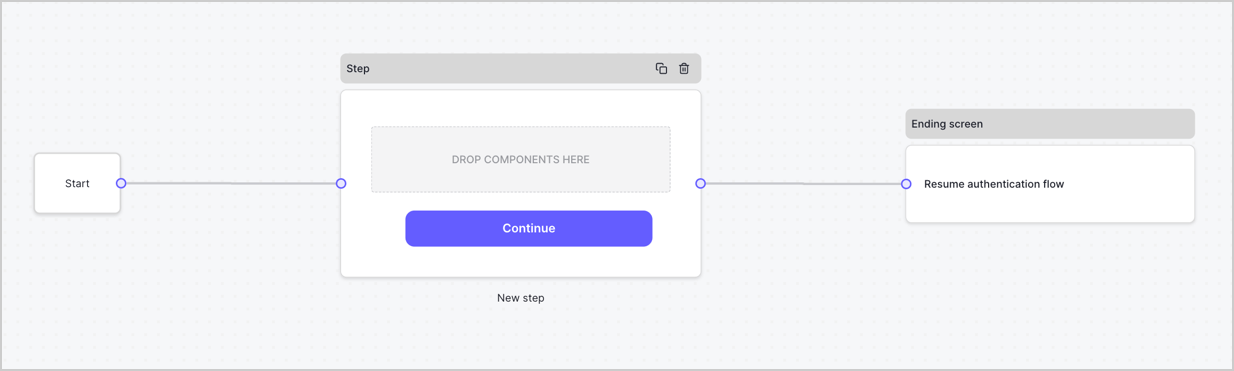
By default, a new form contains a Start node, a Step node, and an Ending screen node.
<Frame>
  <img src="https://mintcdn.com/docs-staging-feat-sdk-reference-docs/OMbaL5tGpZJgvr5N/docs/images/cdy7uua7fh8z/2TZ9jSjgEcARFpULI6hz4R/a4319a1bd482f2ee5cc23100fdb2f42c/New-form-Forms-for-action-use-case.png?fit=max&auto=format&n=OMbaL5tGpZJgvr5N&q=85&s=7930a5f9ae10fa47d7561081d69a69b7" alt="Dashboard > Forms > Use Cases > Form" data-og-width="1234" width="1234" data-og-height="371" height="371" data-path="docs/images/cdy7uua7fh8z/2TZ9jSjgEcARFpULI6hz4R/a4319a1bd482f2ee5cc23100fdb2f42c/New-form-Forms-for-action-use-case.png" data-optimize="true" data-opv="3" srcset="https://mintcdn.com/docs-staging-feat-sdk-reference-docs/OMbaL5tGpZJgvr5N/docs/images/cdy7uua7fh8z/2TZ9jSjgEcARFpULI6hz4R/a4319a1bd482f2ee5cc23100fdb2f42c/New-form-Forms-for-action-use-case.png?w=280&fit=max&auto=format&n=OMbaL5tGpZJgvr5N&q=85&s=f0d31d20b283a49a00612fbbf6c552ce 280w, https://mintcdn.com/docs-staging-feat-sdk-reference-docs/OMbaL5tGpZJgvr5N/docs/images/cdy7uua7fh8z/2TZ9jSjgEcARFpULI6hz4R/a4319a1bd482f2ee5cc23100fdb2f42c/New-form-Forms-for-action-use-case.png?w=560&fit=max&auto=format&n=OMbaL5tGpZJgvr5N&q=85&s=0602416a7aefdef82483407724d97ca1 560w, https://mintcdn.com/docs-staging-feat-sdk-reference-docs/OMbaL5tGpZJgvr5N/docs/images/cdy7uua7fh8z/2TZ9jSjgEcARFpULI6hz4R/a4319a1bd482f2ee5cc23100fdb2f42c/New-form-Forms-for-action-use-case.png?w=840&fit=max&auto=format&n=OMbaL5tGpZJgvr5N&q=85&s=12b6c18920dbda388369b2da8fb5e791 840w, https://mintcdn.com/docs-staging-feat-sdk-reference-docs/OMbaL5tGpZJgvr5N/docs/images/cdy7uua7fh8z/2TZ9jSjgEcARFpULI6hz4R/a4319a1bd482f2ee5cc23100fdb2f42c/New-form-Forms-for-action-use-case.png?w=1100&fit=max&auto=format&n=OMbaL5tGpZJgvr5N&q=85&s=56c65a1edd2830d0a5c6da1b56c925dd 1100w, https://mintcdn.com/docs-staging-feat-sdk-reference-docs/OMbaL5tGpZJgvr5N/docs/images/cdy7uua7fh8z/2TZ9jSjgEcARFpULI6hz4R/a4319a1bd482f2ee5cc23100fdb2f42c/New-form-Forms-for-action-use-case.png?w=1650&fit=max&auto=format&n=OMbaL5tGpZJgvr5N&q=85&s=e3351859398f5d778530eb8420ded8dd 1650w, https://mintcdn.com/docs-staging-feat-sdk-reference-docs/OMbaL5tGpZJgvr5N/docs/images/cdy7uua7fh8z/2TZ9jSjgEcARFpULI6hz4R/a4319a1bd482f2ee5cc23100fdb2f42c/New-form-Forms-for-action-use-case.png?w=2500&fit=max&auto=format&n=OMbaL5tGpZJgvr5N&q=85&s=59ca8d687803a97c1f68bdcfad3ceaef 2500w" />
</Frame>

### Configure the Step node

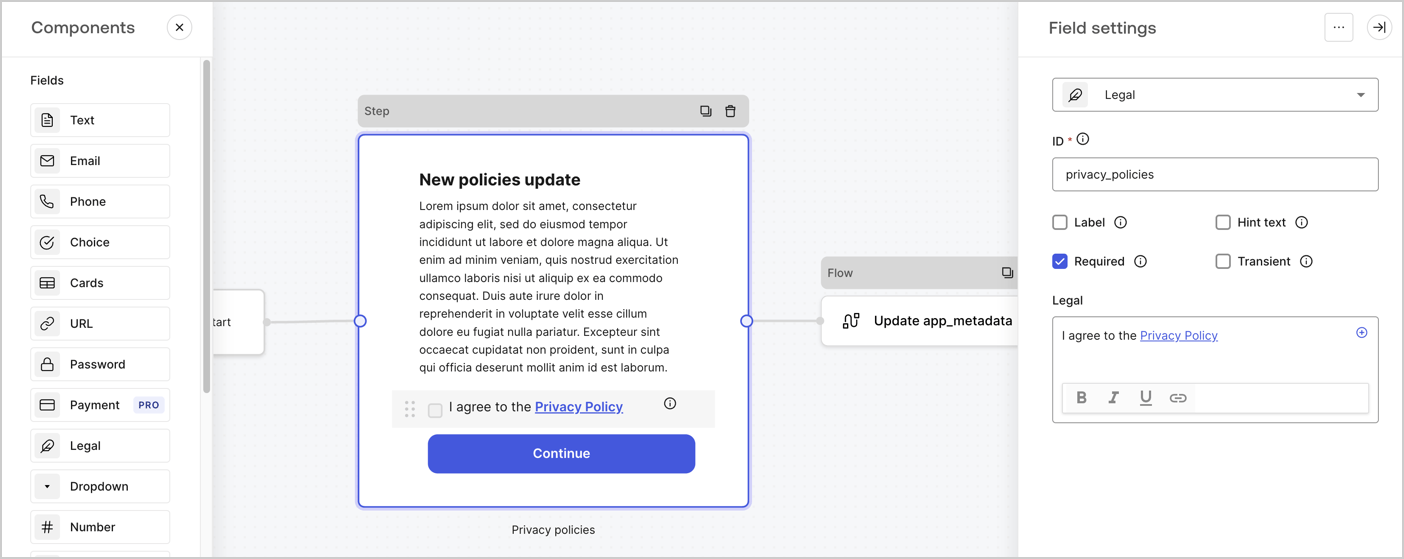
The Step node is the graphical interface visible to users. Add [Fields](/docs/customize/forms/nodes-and-components) to the Step node to collect the new agreement acceptance value by following these steps:

1. Drag a **Rich text** field from the **Components menu** into the **Step** node.

   * **Rich text**: Enter a description of your privacy policies updates.
   * Select **Save**.
2. Drag a **Legal** field into the **Step** node.

   * **ID**: Enter `privacy_policies`.
   * **Required**: Enable the checkbox.
   * **Legal**: Enter `I agree to the Privacy Policy`.
   * Select **Save**.
3. Select **Publish** to save.
<Frame>
  <img src="https://mintcdn.com/docs-staging-feat-sdk-reference-docs/VaWHC_KPGgUmZpWE/docs/images/cdy7uua7fh8z/59zFFjQjAnjogkc2QGIqqJ/0ad66b1b636544122aa4e65968b76c2c/privacy-policy-step-node.png?fit=max&auto=format&n=VaWHC_KPGgUmZpWE&q=85&s=95f143a60fd4d9d50db8787898f64919" alt="Dashboard > Actions > Forms > Use case privacy policy step node" data-og-width="1404" width="1404" data-og-height="559" height="559" data-path="docs/images/cdy7uua7fh8z/59zFFjQjAnjogkc2QGIqqJ/0ad66b1b636544122aa4e65968b76c2c/privacy-policy-step-node.png" data-optimize="true" data-opv="3" srcset="https://mintcdn.com/docs-staging-feat-sdk-reference-docs/VaWHC_KPGgUmZpWE/docs/images/cdy7uua7fh8z/59zFFjQjAnjogkc2QGIqqJ/0ad66b1b636544122aa4e65968b76c2c/privacy-policy-step-node.png?w=280&fit=max&auto=format&n=VaWHC_KPGgUmZpWE&q=85&s=ead416e31b6476c5c5a98d686d1ee7ae 280w, https://mintcdn.com/docs-staging-feat-sdk-reference-docs/VaWHC_KPGgUmZpWE/docs/images/cdy7uua7fh8z/59zFFjQjAnjogkc2QGIqqJ/0ad66b1b636544122aa4e65968b76c2c/privacy-policy-step-node.png?w=560&fit=max&auto=format&n=VaWHC_KPGgUmZpWE&q=85&s=17eb1d25ca397a7e252914728b4065fd 560w, https://mintcdn.com/docs-staging-feat-sdk-reference-docs/VaWHC_KPGgUmZpWE/docs/images/cdy7uua7fh8z/59zFFjQjAnjogkc2QGIqqJ/0ad66b1b636544122aa4e65968b76c2c/privacy-policy-step-node.png?w=840&fit=max&auto=format&n=VaWHC_KPGgUmZpWE&q=85&s=0f4d0b95e1b25acf7c967ccb2f8a5f65 840w, https://mintcdn.com/docs-staging-feat-sdk-reference-docs/VaWHC_KPGgUmZpWE/docs/images/cdy7uua7fh8z/59zFFjQjAnjogkc2QGIqqJ/0ad66b1b636544122aa4e65968b76c2c/privacy-policy-step-node.png?w=1100&fit=max&auto=format&n=VaWHC_KPGgUmZpWE&q=85&s=1fc5546640e6c6cb27def25a6b1e271a 1100w, https://mintcdn.com/docs-staging-feat-sdk-reference-docs/VaWHC_KPGgUmZpWE/docs/images/cdy7uua7fh8z/59zFFjQjAnjogkc2QGIqqJ/0ad66b1b636544122aa4e65968b76c2c/privacy-policy-step-node.png?w=1650&fit=max&auto=format&n=VaWHC_KPGgUmZpWE&q=85&s=54b1448b2e675dbdac2b8a9a672e8276 1650w, https://mintcdn.com/docs-staging-feat-sdk-reference-docs/VaWHC_KPGgUmZpWE/docs/images/cdy7uua7fh8z/59zFFjQjAnjogkc2QGIqqJ/0ad66b1b636544122aa4e65968b76c2c/privacy-policy-step-node.png?w=2500&fit=max&auto=format&n=VaWHC_KPGgUmZpWE&q=85&s=7f35fc33a32156b0808d8e4e7659c5b2 2500w" />
</Frame>

### Configure the Flow node

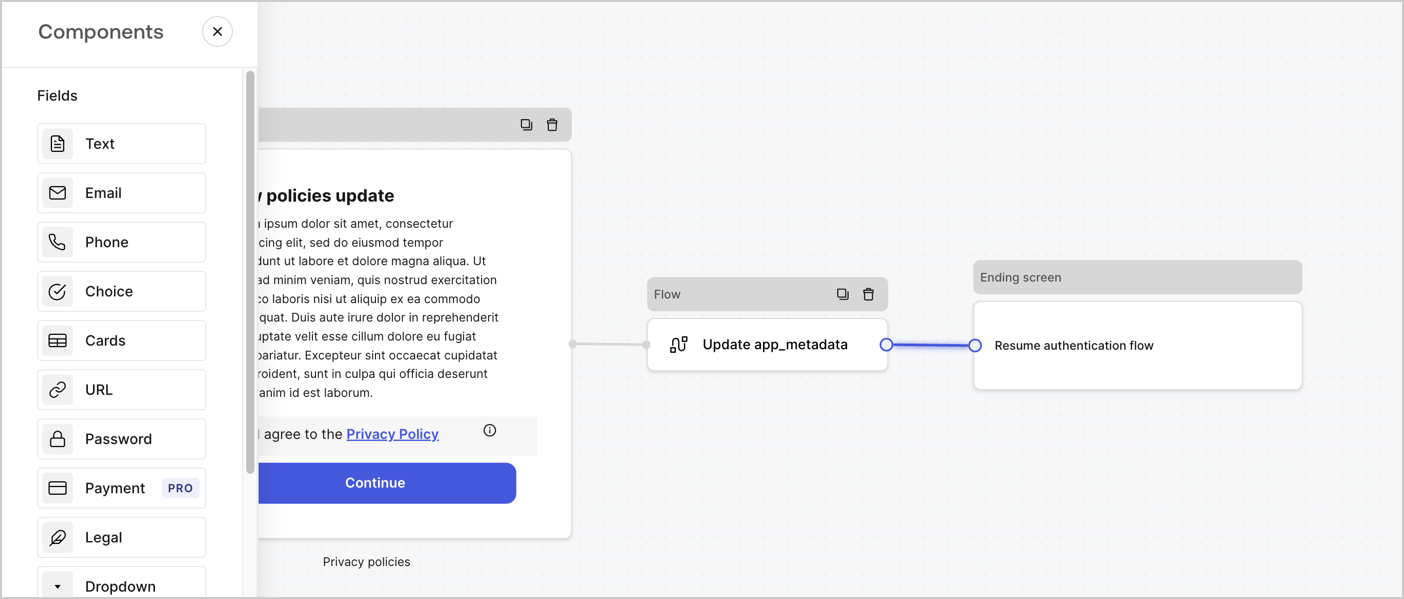
Add a **Flow** node after the **Step** node to update the `app_metadata` and resume the authentication flow by following these steps:

1. Select **Flow** from the bottom of the Form editor.
2. Remove the existing link between the **Step** and **Ending Screen** nodes.
3. Select the new **Flow** > **Click to add a flow** > **Create a new flow.**

   * Enter `Update app_metadata` in the **Name** field.
   * Select **Create**.
   * Select **Save**.
4. Link the **Flow** node to the **Step** and **Ending Screen** nodes as pictured below.
5. Select **Publish** to save.
<Frame>
  <img src="https://mintcdn.com/docs-staging-feat-sdk-reference-docs/7XeQ3Zd4LUFArOyz/docs/images/cdy7uua7fh8z/6YIkzm7SrpM9LW76AXuRzh/353c518fe82bbaa440836da1d83596d6/link-policies.png?fit=max&auto=format&n=7XeQ3Zd4LUFArOyz&q=85&s=12a5281673914d23f817f34096f989f8" alt="Dashboard > Actions > Forms > Form" data-og-width="1404" width="1404" data-og-height="599" height="599" data-path="docs/images/cdy7uua7fh8z/6YIkzm7SrpM9LW76AXuRzh/353c518fe82bbaa440836da1d83596d6/link-policies.png" data-optimize="true" data-opv="3" srcset="https://mintcdn.com/docs-staging-feat-sdk-reference-docs/7XeQ3Zd4LUFArOyz/docs/images/cdy7uua7fh8z/6YIkzm7SrpM9LW76AXuRzh/353c518fe82bbaa440836da1d83596d6/link-policies.png?w=280&fit=max&auto=format&n=7XeQ3Zd4LUFArOyz&q=85&s=07d6ec5d2f7e2f36ce5b70b3f589def9 280w, https://mintcdn.com/docs-staging-feat-sdk-reference-docs/7XeQ3Zd4LUFArOyz/docs/images/cdy7uua7fh8z/6YIkzm7SrpM9LW76AXuRzh/353c518fe82bbaa440836da1d83596d6/link-policies.png?w=560&fit=max&auto=format&n=7XeQ3Zd4LUFArOyz&q=85&s=9213e0cd9d310cde713dea0e1b0a57d9 560w, https://mintcdn.com/docs-staging-feat-sdk-reference-docs/7XeQ3Zd4LUFArOyz/docs/images/cdy7uua7fh8z/6YIkzm7SrpM9LW76AXuRzh/353c518fe82bbaa440836da1d83596d6/link-policies.png?w=840&fit=max&auto=format&n=7XeQ3Zd4LUFArOyz&q=85&s=17de87d3cef93e984c209091f0b6ff80 840w, https://mintcdn.com/docs-staging-feat-sdk-reference-docs/7XeQ3Zd4LUFArOyz/docs/images/cdy7uua7fh8z/6YIkzm7SrpM9LW76AXuRzh/353c518fe82bbaa440836da1d83596d6/link-policies.png?w=1100&fit=max&auto=format&n=7XeQ3Zd4LUFArOyz&q=85&s=e4e41228235b7efab323426ea83c7b6f 1100w, https://mintcdn.com/docs-staging-feat-sdk-reference-docs/7XeQ3Zd4LUFArOyz/docs/images/cdy7uua7fh8z/6YIkzm7SrpM9LW76AXuRzh/353c518fe82bbaa440836da1d83596d6/link-policies.png?w=1650&fit=max&auto=format&n=7XeQ3Zd4LUFArOyz&q=85&s=fa33e66781248e87060a585d10d3bedf 1650w, https://mintcdn.com/docs-staging-feat-sdk-reference-docs/7XeQ3Zd4LUFArOyz/docs/images/cdy7uua7fh8z/6YIkzm7SrpM9LW76AXuRzh/353c518fe82bbaa440836da1d83596d6/link-policies.png?w=2500&fit=max&auto=format&n=7XeQ3Zd4LUFArOyz&q=85&s=89323ece2538e9951d1e55d29b5a37d8 2500w" />
</Frame>

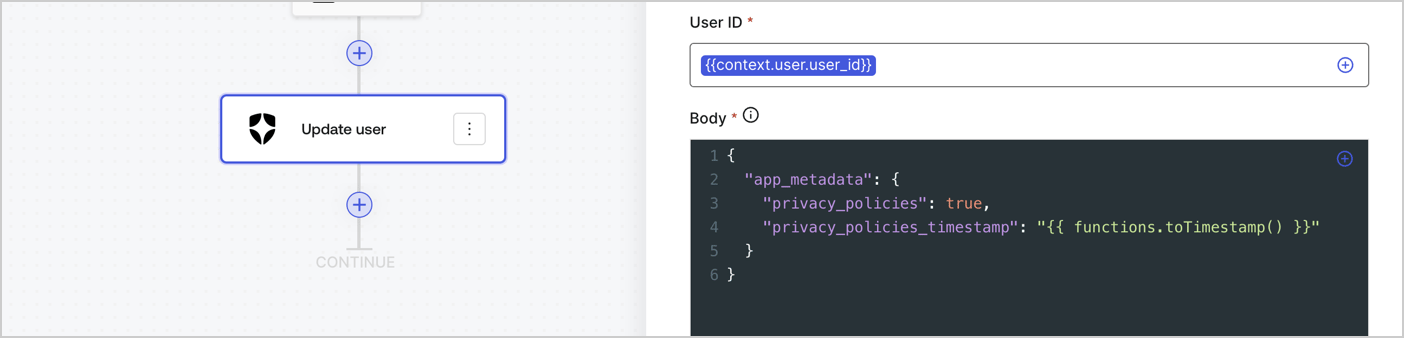
Add an Auth0 Update user action to the flow by following these steps:

1. Select the **Flow** **Update app\_metadata** > **Edit flow** to open the Flow editor in a new tab.
2. Below the StartAction, select the **+** icon to add an **Update user** action. Complete the fields below, then select **Save** to continue.

   * **Connection**: Select from the dropdown the Vault connection to your M2M application.

   * **User ID**: Enter `{{context.user.user_id}}`.

   * **Body**: Copy and paste the following code to update the app\_metadata with the privacy\_policies and privacy\_policies\_timestamp properties.

     ```text lines theme={null}
     {
       "app_metadata": {
         "privacy_policies": true,
         "privacy_policies_timestamp": "{{ functions.toTimestamp() }}"
       }
     }
     ```

   * Select **Save**.
3. Select **Publish** to save.
<Frame>
  <img src="https://mintcdn.com/docs-staging-feat-sdk-reference-docs/FZw-B4H1_2E4nPXU/docs/images/cdy7uua7fh8z/CvMNIwWrOUwaFW4X3G28p/1fb70ae57a20749d9ffaaba8dc0b7e26/update-user-privacy.png?fit=max&auto=format&n=FZw-B4H1_2E4nPXU&q=85&s=85527dab074aefd6a6413a00358e0c4f" alt="Dashboard > Actions > Forms > User case privacy policy code" data-og-width="1404" width="1404" data-og-height="338" height="338" data-path="docs/images/cdy7uua7fh8z/CvMNIwWrOUwaFW4X3G28p/1fb70ae57a20749d9ffaaba8dc0b7e26/update-user-privacy.png" data-optimize="true" data-opv="3" srcset="https://mintcdn.com/docs-staging-feat-sdk-reference-docs/FZw-B4H1_2E4nPXU/docs/images/cdy7uua7fh8z/CvMNIwWrOUwaFW4X3G28p/1fb70ae57a20749d9ffaaba8dc0b7e26/update-user-privacy.png?w=280&fit=max&auto=format&n=FZw-B4H1_2E4nPXU&q=85&s=a280dad319818312204f04b9c06d153d 280w, https://mintcdn.com/docs-staging-feat-sdk-reference-docs/FZw-B4H1_2E4nPXU/docs/images/cdy7uua7fh8z/CvMNIwWrOUwaFW4X3G28p/1fb70ae57a20749d9ffaaba8dc0b7e26/update-user-privacy.png?w=560&fit=max&auto=format&n=FZw-B4H1_2E4nPXU&q=85&s=81ff389a0968a5d851f1bf97a7a5b594 560w, https://mintcdn.com/docs-staging-feat-sdk-reference-docs/FZw-B4H1_2E4nPXU/docs/images/cdy7uua7fh8z/CvMNIwWrOUwaFW4X3G28p/1fb70ae57a20749d9ffaaba8dc0b7e26/update-user-privacy.png?w=840&fit=max&auto=format&n=FZw-B4H1_2E4nPXU&q=85&s=aff33a779dfa71ff5f2d50255b20e95c 840w, https://mintcdn.com/docs-staging-feat-sdk-reference-docs/FZw-B4H1_2E4nPXU/docs/images/cdy7uua7fh8z/CvMNIwWrOUwaFW4X3G28p/1fb70ae57a20749d9ffaaba8dc0b7e26/update-user-privacy.png?w=1100&fit=max&auto=format&n=FZw-B4H1_2E4nPXU&q=85&s=5a65342e5e50d366637f2d49fb02a3c9 1100w, https://mintcdn.com/docs-staging-feat-sdk-reference-docs/FZw-B4H1_2E4nPXU/docs/images/cdy7uua7fh8z/CvMNIwWrOUwaFW4X3G28p/1fb70ae57a20749d9ffaaba8dc0b7e26/update-user-privacy.png?w=1650&fit=max&auto=format&n=FZw-B4H1_2E4nPXU&q=85&s=888b551b161a9b47bfccef8d8b94d494 1650w, https://mintcdn.com/docs-staging-feat-sdk-reference-docs/FZw-B4H1_2E4nPXU/docs/images/cdy7uua7fh8z/CvMNIwWrOUwaFW4X3G28p/1fb70ae57a20749d9ffaaba8dc0b7e26/update-user-privacy.png?w=2500&fit=max&auto=format&n=FZw-B4H1_2E4nPXU&q=85&s=9a325acd5c7d22bc5ea52b605955b644 2500w" />
</Frame>

<Callout icon="file-lines" color="#0EA5E9" iconType="regular">
  The flow **Update app\_metadata** adds a `privacy_policies true` value to the app`_metadata` object and also generates a timestamp with a [helper function.](/docs/customize/forms/variables)
</Callout>

## Retrieve the form render code

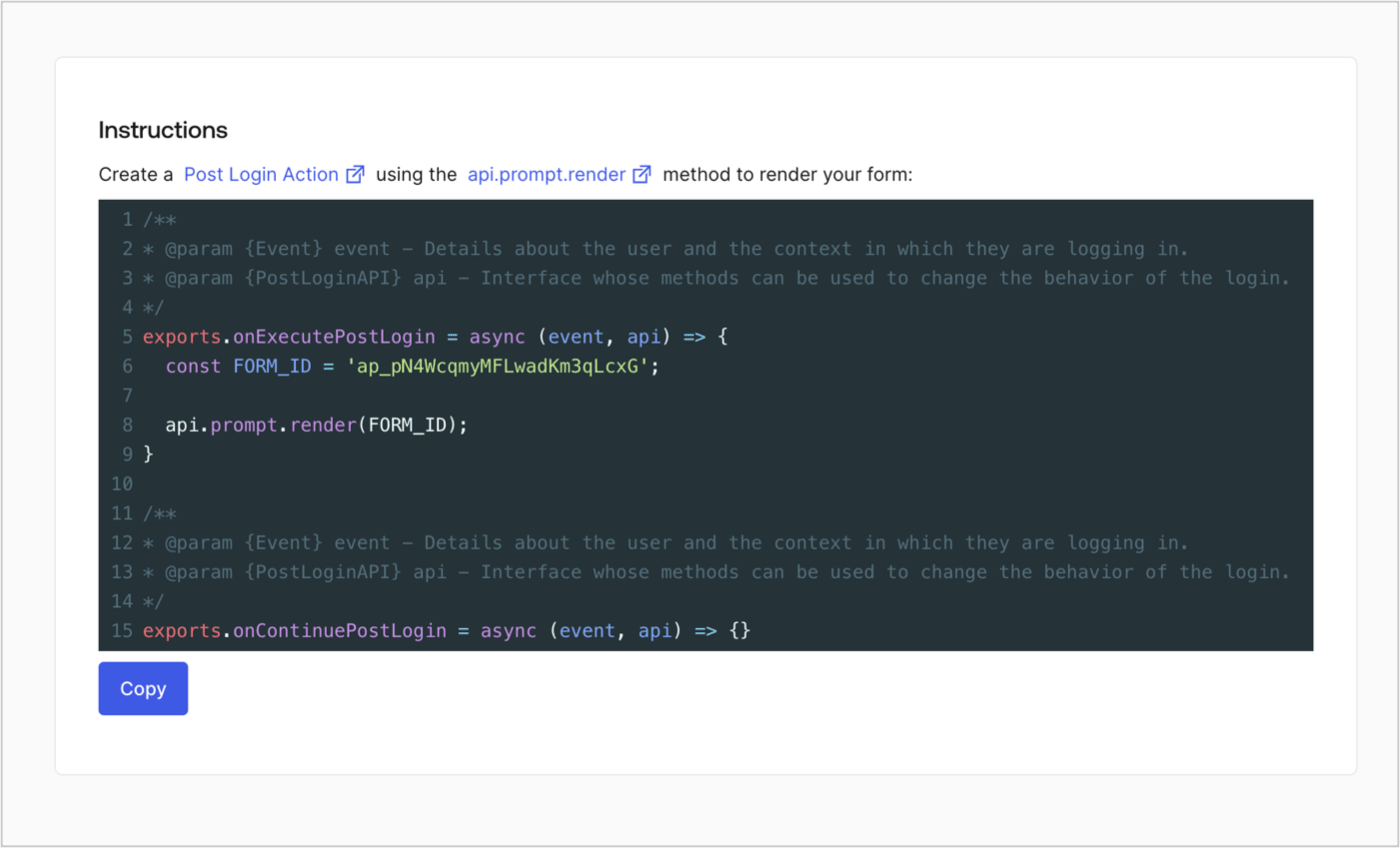
Retrieve your form render code to visually render the form with a custom Post Login Action by following these steps:

* From the Form editor, select **`<> Render`**.
* Select **Copy**.
<Frame>
  <img src="https://mintcdn.com/docs-staging-feat-sdk-reference-docs/OMbaL5tGpZJgvr5N/docs/images/cdy7uua7fh8z/2EIUzc539sq9lwoTKbjoJv/496a864c0fc44a782c9cadca119dbfb0/embed.png?fit=max&auto=format&n=OMbaL5tGpZJgvr5N&q=85&s=c3f01a0a25be9003d924d1fd36528db5" alt="Dashboard > Actions > Forms > Form > Embed" data-og-width="1400" width="1400" data-og-height="848" height="848" data-path="docs/images/cdy7uua7fh8z/2EIUzc539sq9lwoTKbjoJv/496a864c0fc44a782c9cadca119dbfb0/embed.png" data-optimize="true" data-opv="3" srcset="https://mintcdn.com/docs-staging-feat-sdk-reference-docs/OMbaL5tGpZJgvr5N/docs/images/cdy7uua7fh8z/2EIUzc539sq9lwoTKbjoJv/496a864c0fc44a782c9cadca119dbfb0/embed.png?w=280&fit=max&auto=format&n=OMbaL5tGpZJgvr5N&q=85&s=7d74b1f31c6130dd37392e365d4a6ead 280w, https://mintcdn.com/docs-staging-feat-sdk-reference-docs/OMbaL5tGpZJgvr5N/docs/images/cdy7uua7fh8z/2EIUzc539sq9lwoTKbjoJv/496a864c0fc44a782c9cadca119dbfb0/embed.png?w=560&fit=max&auto=format&n=OMbaL5tGpZJgvr5N&q=85&s=4bd4e48eb66f5ccb1aee3fbefc4ca7f1 560w, https://mintcdn.com/docs-staging-feat-sdk-reference-docs/OMbaL5tGpZJgvr5N/docs/images/cdy7uua7fh8z/2EIUzc539sq9lwoTKbjoJv/496a864c0fc44a782c9cadca119dbfb0/embed.png?w=840&fit=max&auto=format&n=OMbaL5tGpZJgvr5N&q=85&s=94f7304ec285f277adac0f3fa554055f 840w, https://mintcdn.com/docs-staging-feat-sdk-reference-docs/OMbaL5tGpZJgvr5N/docs/images/cdy7uua7fh8z/2EIUzc539sq9lwoTKbjoJv/496a864c0fc44a782c9cadca119dbfb0/embed.png?w=1100&fit=max&auto=format&n=OMbaL5tGpZJgvr5N&q=85&s=5cd7a64e06c0ad06439f18770b9fc2f5 1100w, https://mintcdn.com/docs-staging-feat-sdk-reference-docs/OMbaL5tGpZJgvr5N/docs/images/cdy7uua7fh8z/2EIUzc539sq9lwoTKbjoJv/496a864c0fc44a782c9cadca119dbfb0/embed.png?w=1650&fit=max&auto=format&n=OMbaL5tGpZJgvr5N&q=85&s=ab8d06113203280105a4c67ff34ea3da 1650w, https://mintcdn.com/docs-staging-feat-sdk-reference-docs/OMbaL5tGpZJgvr5N/docs/images/cdy7uua7fh8z/2EIUzc539sq9lwoTKbjoJv/496a864c0fc44a782c9cadca119dbfb0/embed.png?w=2500&fit=max&auto=format&n=OMbaL5tGpZJgvr5N&q=85&s=1de46609e35d2171c7e768565d356ff3 2500w" />
</Frame>

## Create a Post Login Action

Create a post-login Action to render your form by following these steps:

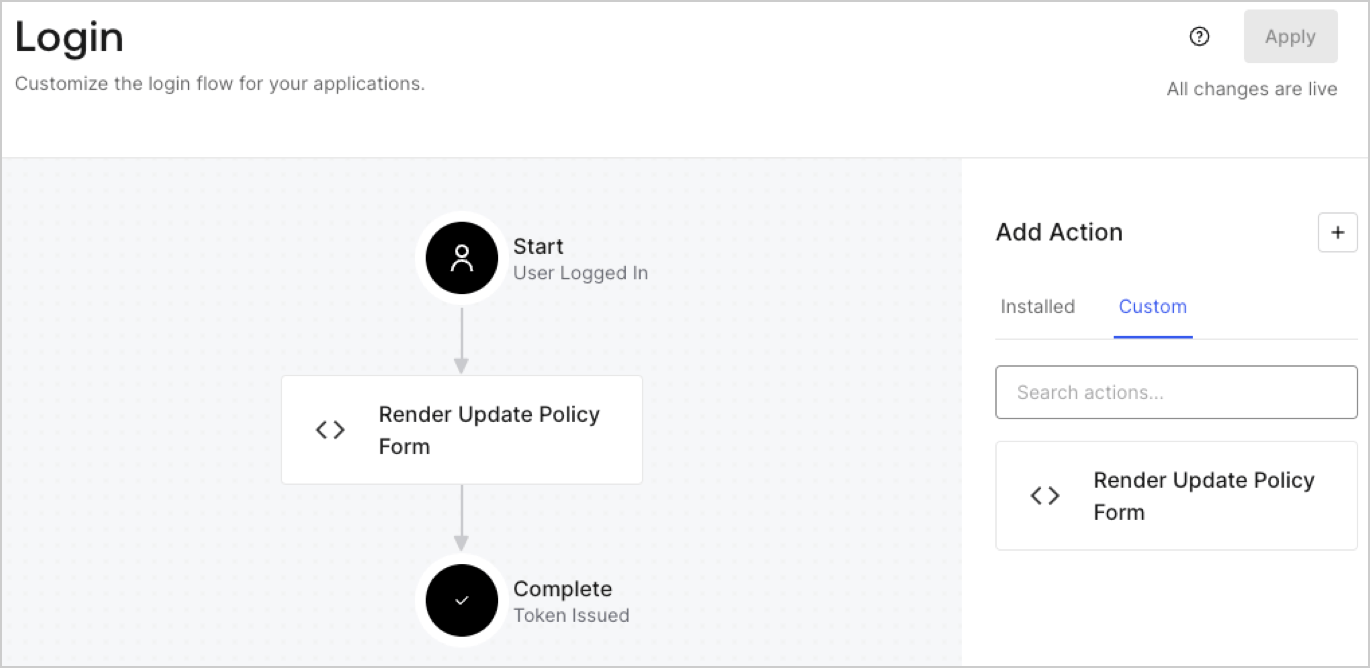
1. Navigate to **Auth0 Dashboard > Actions > Flows > Login.**
2. Select the **+** icon and Select **Build from scratch**:

   * **Name**: Enter `Render Update Policy Form`.
   * **Trigger**: Select `Login / Post Login`.
   * **Runtime**: Select the recommended version.
3. Select **Create**.

To configure the post-login Action:

1. Delete the existing code from the Code editor.
2. Paste the form render code into the Code editor.
3. Edit the code to define the conditional logic that will render the form.

   ```javascript lines theme={null}
   /**
   * @param {Event} event - Details about the user and the context in which they are logging in.
   * @param {PostLoginAPI} api - Interface whose methods can be used to change the behavior of the login.
   */
   exports.onExecutePostLogin = async (event, api) => {
     const FORM_ID = 'REPLACE_WITH_YOUR_FORM_ID';

     if (event.user.app_metadata.privacy_policies !== true) {
       api.prompt.render(FORM_ID);
     }
   }

   exports.onContinuePostLogin = async (event, api) => { }
   ```

   <Callout icon="file-lines" color="#0EA5E9" iconType="regular">
     The example code above will render the form when a user is missing the app metadata `privacy_policies` property.
   </Callout>
4. Select **Deploy.**
5. Drag and Drop the **Render Update Policy Form** Action to the **Login** flow.
   <Frame>
     <img src="https://mintcdn.com/docs-staging-feat-sdk-reference-docs/VaWHC_KPGgUmZpWE/docs/images/cdy7uua7fh8z/5TOwDgevZsBqd7yZynUYWU/41ca909dc3007aed4f40ff794a05efa5/postlogin.png?fit=max&auto=format&n=VaWHC_KPGgUmZpWE&q=85&s=9e84dac4529ee9a29eb4e96fc3dff59f" alt="Dashboard > Forms > Use Case > Render update policy form login action" data-og-width="1370" width="1370" data-og-height="668" height="668" data-path="docs/images/cdy7uua7fh8z/5TOwDgevZsBqd7yZynUYWU/41ca909dc3007aed4f40ff794a05efa5/postlogin.png" data-optimize="true" data-opv="3" srcset="https://mintcdn.com/docs-staging-feat-sdk-reference-docs/VaWHC_KPGgUmZpWE/docs/images/cdy7uua7fh8z/5TOwDgevZsBqd7yZynUYWU/41ca909dc3007aed4f40ff794a05efa5/postlogin.png?w=280&fit=max&auto=format&n=VaWHC_KPGgUmZpWE&q=85&s=7388ab0fdb82c0cb7851423ad7d29482 280w, https://mintcdn.com/docs-staging-feat-sdk-reference-docs/VaWHC_KPGgUmZpWE/docs/images/cdy7uua7fh8z/5TOwDgevZsBqd7yZynUYWU/41ca909dc3007aed4f40ff794a05efa5/postlogin.png?w=560&fit=max&auto=format&n=VaWHC_KPGgUmZpWE&q=85&s=a11ee7b29e127d91bba36afb4199e7cd 560w, https://mintcdn.com/docs-staging-feat-sdk-reference-docs/VaWHC_KPGgUmZpWE/docs/images/cdy7uua7fh8z/5TOwDgevZsBqd7yZynUYWU/41ca909dc3007aed4f40ff794a05efa5/postlogin.png?w=840&fit=max&auto=format&n=VaWHC_KPGgUmZpWE&q=85&s=f5e3fb4c95357ee5b57810dbd089e969 840w, https://mintcdn.com/docs-staging-feat-sdk-reference-docs/VaWHC_KPGgUmZpWE/docs/images/cdy7uua7fh8z/5TOwDgevZsBqd7yZynUYWU/41ca909dc3007aed4f40ff794a05efa5/postlogin.png?w=1100&fit=max&auto=format&n=VaWHC_KPGgUmZpWE&q=85&s=4facbcf30022e4e091c8b8609159366a 1100w, https://mintcdn.com/docs-staging-feat-sdk-reference-docs/VaWHC_KPGgUmZpWE/docs/images/cdy7uua7fh8z/5TOwDgevZsBqd7yZynUYWU/41ca909dc3007aed4f40ff794a05efa5/postlogin.png?w=1650&fit=max&auto=format&n=VaWHC_KPGgUmZpWE&q=85&s=b472cb7f4b13669dc7bba8aed774d3e2 1650w, https://mintcdn.com/docs-staging-feat-sdk-reference-docs/VaWHC_KPGgUmZpWE/docs/images/cdy7uua7fh8z/5TOwDgevZsBqd7yZynUYWU/41ca909dc3007aed4f40ff794a05efa5/postlogin.png?w=2500&fit=max&auto=format&n=VaWHC_KPGgUmZpWE&q=85&s=65a1155dd0469a0c1285d47595f2150b 2500w" />
   </Frame>
6. Select **Apply.**

### Test implementation

Test the implementation by following these steps:

1. Log in with an existing user whose app`_metadata` attribute `privacy_policies` does not have a value.
2. The post-login Action in the Login flow will render the form and prompt for acceptance.
3. Select **Auth0 Dashboard > User Management > Users,** locate the user and verify that the `app_metadata` attribute `privacy_policies` contains a `true` value and a timestamp.
